girasol-tvbro-doc
Heartbeat Guide
Overview
The Heartbeat feature periodically sends device status data to the KanbanBro server. You can check the running status using the dedicated Heartbeat Monitor.
Using this feature requires user authentication (Log in) and enabling the feature.
Table of contents
How to use
You can use the Heartbeat feature with the following steps.
- Log in with a Google account
- Enable the Heartbeat feature
- Access the Heartbeat Monitor
Heartbeat settings screen
Accessing the Heartbeat settings screen
You can access the Heartbeat settings from the common settings screen.
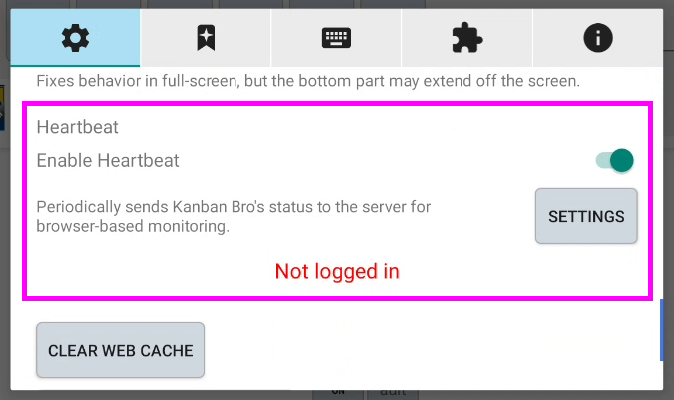
Layout of the Heartbeat settings screen
The image below shows the Heartbeat settings screen.
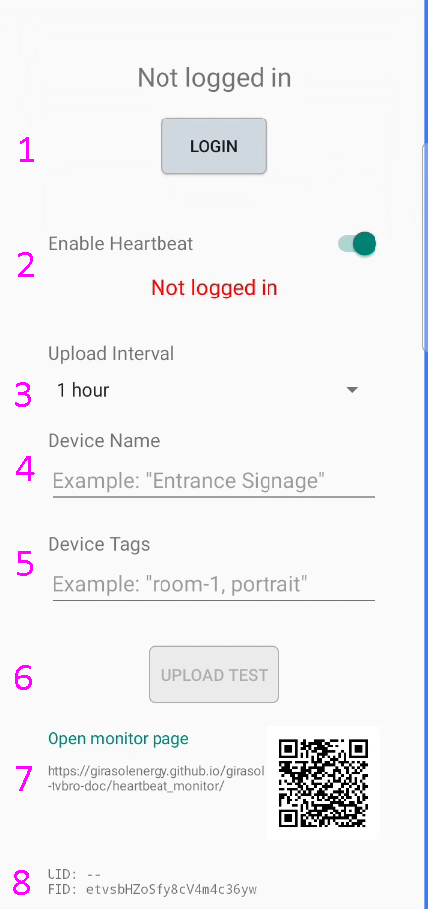
1: Log in / Log out
Log in and log out using a Google account.
If you are not logged in, the Heartbeat feature is not available.
2: Enable toggle
You can turn sending status data to the server on or off.
The status data includes a screenshot of the app at the time of sending, and the app’s full state and settings.
To use the Heartbeat feature, switch it on.
3: Interval setting
You can set the interval at which status data is sent.
4: Title
You can set an arbitrary device name to be shown on the Heartbeat Monitor.
If not set, the FID (a unique ID per installation) will be shown.
5: Tags
You can optionally set tag strings used for filtering on the Heartbeat Monitor.
6: Test send
You can send one batch of data immediately to verify operation.
7: Link to Heartbeat Monitor
A link to the Heartbeat Monitor.
8: Display of UID / FID
You can check UID (the currently logged-in user’s ID) and FID (a unique ID per installation).